
If you work with cameras at multiple sites, you soon have more to manage than video footage alone. Think of customers, sites, cameras, livestreams, timelapses, alerts, logbooks, planning, tickets and integrations with other systems.
When that information is spread across separate tools, spreadsheets and mailboxes, every incident becomes a search. Who is responsible for this site? Which camera belongs to which project? Has this fault already been reported? Who changed the status?
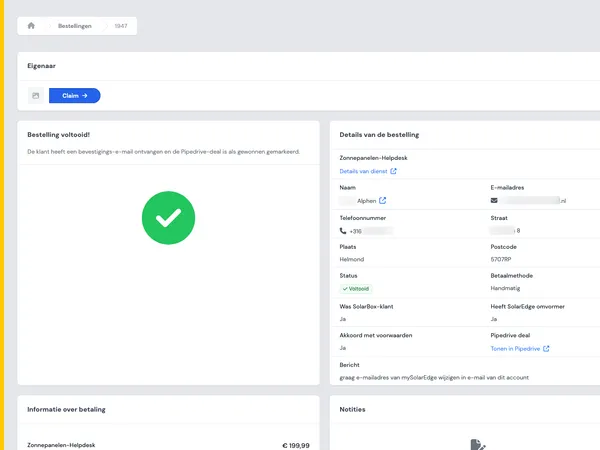
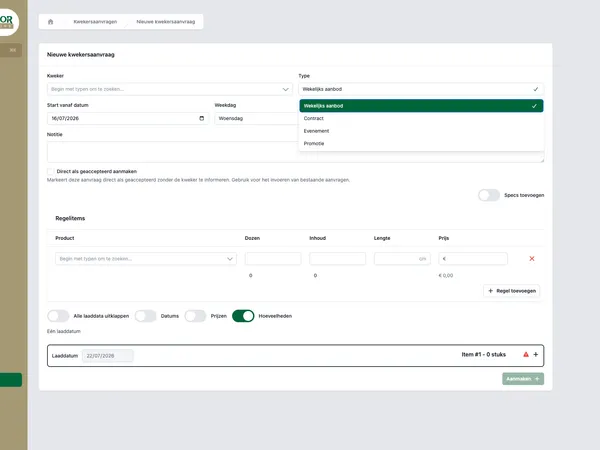
A good customer portal brings that operational information together. Not by putting everything on one big screen, but by designing the right structure. In the Ciekeboe case you can see how camera management, alerts, logbooks, planning and ticketing come together in custom software. In this article we translate that into design choices that are relevant for similar environments.

An office building as a metaphor for site management within an operational customer portal.
Why camera management quickly becomes fragmented
At the start, camera management often seems simple. There is a customer, there is a site and there are cameras on it. But in practice that situation changes all the time. Sites are added, cameras are moved, users take on other responsibilities and incidents need to be reconstructable afterwards.
The fragmentation usually arises in three places:
- Object information: customer details, site details, camera settings and contacts are not in the same place.
- Operational communication: alerts, follow-up and status updates go through email, chat or separate tickets.
- Accountability: actions are not recorded consistently, so it later becomes unclear what happened.
For a team that manages sites every day, that is more than an inconvenience. It slows down incident handling, makes handovers difficult and increases the chance that important signals are missed.
Start with the data model: customer, site, camera, event
A customer portal for camera management stands or falls with its data model. The first question is not the screen design, but the relationship between the most important objects.
A usable model usually starts with these layers:
- Customer: the organization for which sites, cameras and contract agreements are managed.
- Site: the physical property, project or terrain that cameras and operational agreements are linked to.
- Camera: the device or stream, including status, type, position, settings and relevant metadata.
- Event: an alert, incident, fault, change or planned action.
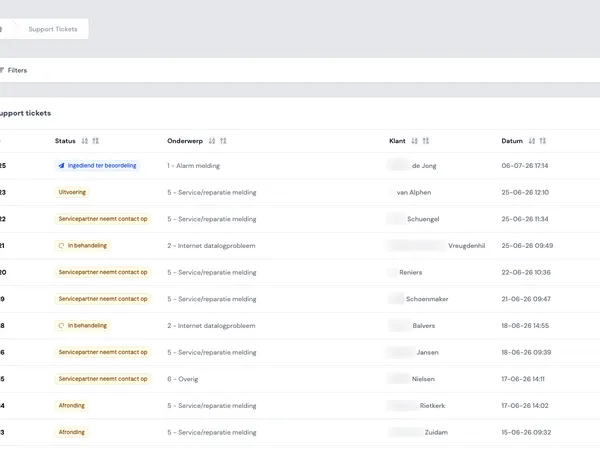
- Ticket: the follow-up of an event, with owner, priority, status and communication.
- Log entry: the record of what was changed, reported or decided.
By keeping those layers consistently separate, you prevent a camera from becoming a messy catch-all for everything that ever had anything to do with it. An incident does not just belong to a camera, but often also to a site, customer, schedule and responsible user.
Network infrastructure as a symbol of the connections between cameras, alerts, tickets and external systems.
Roles and permissions: who may see which information
In camera management, access control is not a side issue. Not every user needs to see all cameras, sites, alerts or logbooks. A customer may only want to view their own sites. A planner needs different permissions than an administrator. A support employee must be able to handle tickets, but not necessarily change contract details.
That is why you need a permission model that fits day-to-day operations. Think of permissions at several levels:
- Organization level: which customers or customer groups may someone see?
- Site level: which properties is someone responsible for?
- Function level: may someone only view, or also change, assign and close?
- Data level: are logbooks, financial data or technical settings visible?
A common approach is to work with roles and permissions. A user then does not get separate exceptions per button, but a role that fits their responsibility. If you want to dive deeper into this topic, also read our article on RBAC in custom web applications.
Designing alerts without notification chaos
A portal with cameras and sites can produce a lot of signals. Think of faults, offline cameras, new incidents, status changes, open tickets and schedule updates. If every signal goes straight to everyone, users learn to ignore alerts.
Good alert design therefore revolves around filtering and context. Ask three questions for every alert:
- Who needs to know this in order to take action?
- How urgent is this alert really?
- What information does the recipient need to decide the next step?
Not every alert has to be a push message or an email. Sometimes a badge in the portal is enough. Sometimes an alert only belongs in a daily overview. And sometimes immediate action is needed because a site temporarily has no working camera.
A practical alert model contains at least priority, category, source, status, owner and time. That lets the team group alerts, escalate them and find them again later.
A server room as a symbol of reliable storage for incident logs, audit trails and operational data.
Incident logs, tickets and audit trails belong together
An incident log is more than a text field with comments. It is the place where you record what happened, when it happened, who was involved and which follow-up was chosen.
For operational teams, the relationship between logbook and ticket matters most. A logbook describes the event. A ticket makes sure action is taken. The audit trail records who made which change.
In a sound design, these parts are separate from each other, but connected:
- Incident log: a factual record of an alert, fault or event.
- Ticket: a follow-up task, including status, priority and owner.
- Audit trail: automatic recording of changes, such as status updates or permission changes.
- Communication: internal notes and customer-facing updates, preferably kept clearly apart.
That separation makes reporting and administration much more reliable. You can see which incidents keep coming back, where tickets get stuck and which sites need extra attention.
Integrations are what make the portal truly operational
A customer portal rarely stands on its own. In practice you want to exchange data with other systems. Think of planning, finance, fuel management, ticketing or external notification services. The Ciekeboe case mentions several operational components of this kind.
The pitfall is that integrations are considered too late in the design. You then end up with a portal that works well on its own, but is hard to integrate with the rest of the organization.
So include integrations early in the design:
- Determine the source of truth: which system is leading for customers, sites, tickets or financial data?
- Set synchronization rules: when is data updated and what happens in case of conflicts?
- Design error handling: what does a user see when an integration is temporarily not working?
- Log technical events: import errors and API problems should be traceable too.
With custom web applications this is often an important advantage. You do not have to force your operations into the shape of a standard package. The system can grow along with processes, roles and integrations.
When custom software for camera management makes sense
Not every team needs custom software. If you only want to view a few cameras, existing software is often enough. Custom software becomes relevant when camera management is part of a broader operation.
You see this, for example, when:
- multiple customers and sites need to be managed in one environment;
- users need different permissions per customer, site or role;
- alerts, tickets and logbooks together form one process;
- livestreams, timelapses, planning and reports come back in the same workflow;
- integrations with finance, planning or other systems are needed;
- standard software causes too many workarounds or too much manual work.
In a situation like that, having a customer portal built is not a cosmetic choice. It is about getting a grip on processes, responsibilities and information. House of Devs helps teams design and build that structure without adding unnecessary complexity.
Want to talk through a customer portal for sites, cameras, incident logs or ticketing? Then get in touch. Together we will look at where custom software adds value and where existing tooling is enough.